


Usenet Wire is a newsreader included with every Eweka plan at no additional cost. It is preconfigured to connect to Eweka’s servers and includes integrated Usenet search and SSL encryption..
This guide covers connecting your Eweka account, finding articles, and managing your newsreader settings.
Before You Start
You will need:
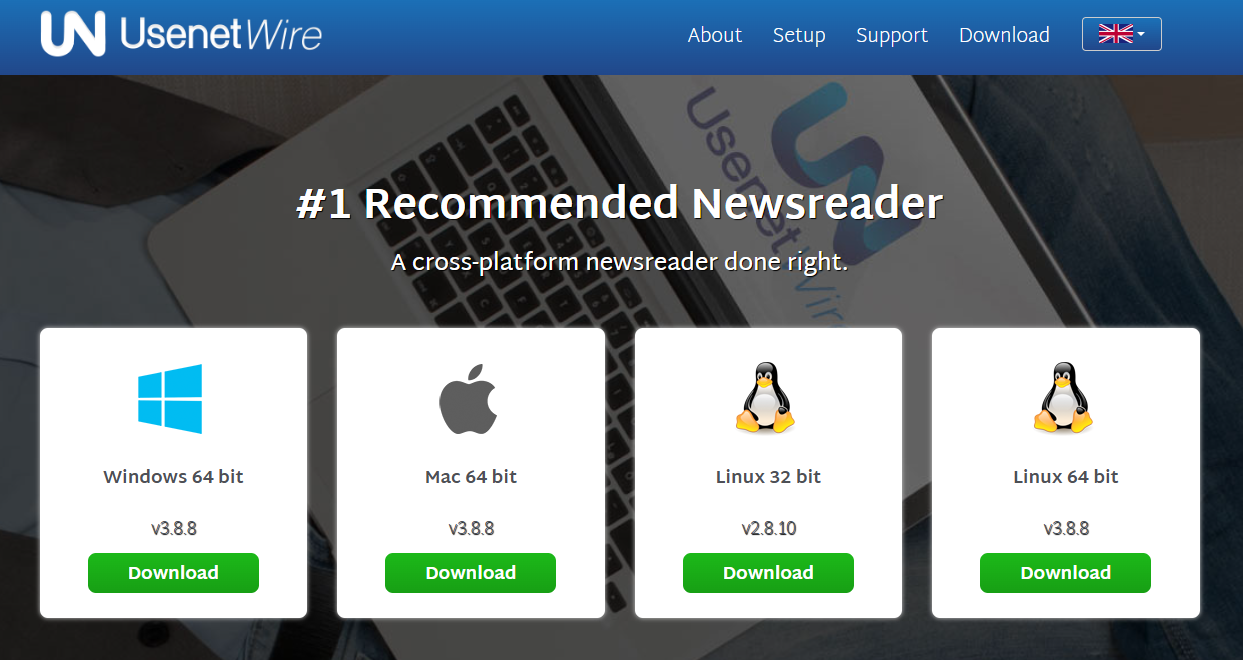
- Usenet Wire installed: Get the version for your operating system from the Usenet Wire download page.
- An active Eweka account: Have your Eweka username and password ready. If you do not have an account, you can sign up for Eweka here.
Connecting to Your Eweka Account
- Open UsenetWire:
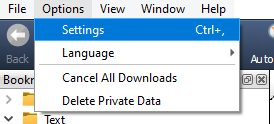
- Go to Options > Settings
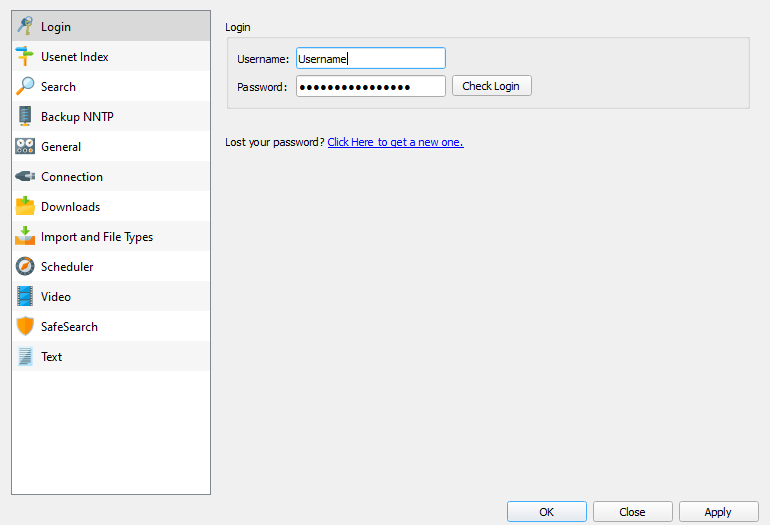
- Select Login from the menu on the left.
- Enter your Eweka username and password.
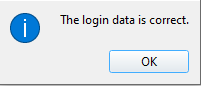
- Click Check Login to confirm that your credentials work.
- Select Connection from the left side menu and check “Prefer SSL connections if available.” We recommend using SSL to encrypt the connection between your computer and Eweka’s servers.
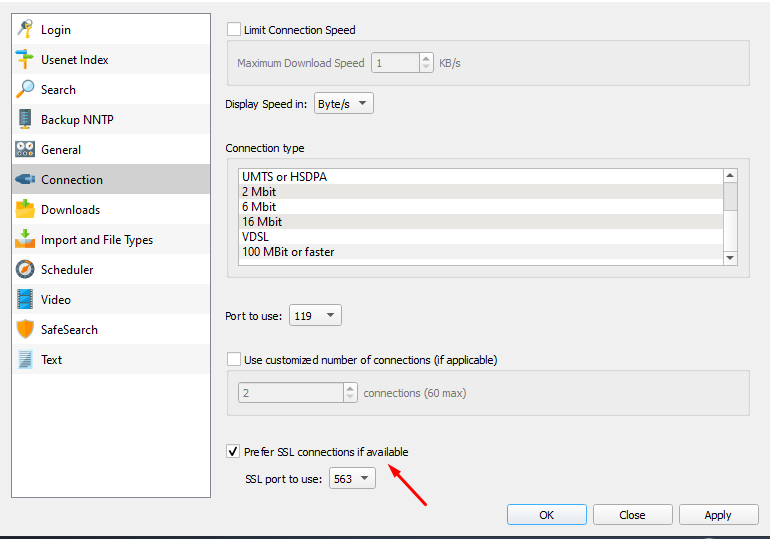
- Click Apply to save your changes.
Finding Articles from the Home Screen
From the home screen, you can browse recent posts or search for articles:
- Browse recent posts: Select the Latest Groups tab.

- Search for articles: Enter search terms in the box at the top right. Results appear below the main icon bar.

Accessing Articles
- Double-click a post to open its details and confirm the transfer.
- Click Transfers to view active and queued transfers. The number in the red square indicates how many transfers are active or queued.
- Once a transfer finishes, open the folder containing your saved articles.
To check or change the storage location, go to Options > Settings > Downloads and locate the Download Folder field.

Finding Newsgroups to Browse
Click Newsgroups at the top of the window to view the available newsgroups. There are multiple ways to help you browse and find newsgroups that interest you.

- Click the Newsgroups button at the top to view all available newsgroups.
- Sort Newsgroups: Click the “Newsgroup” bar to sort by name or the “Articles” bar to sort by the number of articles available.
- Search Newsgroups: Use the “Search for:” field to find specific newsgroups by keyword. Filter results by newsgroup size with “Show only newsgroups with at least:” and set the desired number of articles.

Manage Your Bookmarks
Bookmarks let you return to your preferred newsgroups quickly.
- Add a folder: Right-click at the bottom of the bookmark list and select Add Folder.
- Add a newsgroup: Click Newsgroups, select the (+) icon next to a group, choose a bookmark folder, and click OK. You can also drag a newsgroup into the bookmark bar.
- Browse a bookmarked group: Click its name in the bookmark list.
- Remove a bookmark: Right-click a newsgroup or folder and select Delete Bookmark. Deleting a bookmark folder also removes the bookmarks inside it.
- Configure Newsgroups:
- Specify the newsgroups you want to subscribe to. You can use the UsenetWire search feature on the main page to search for newsgroups and find articles that interest you.
- Start Browsing:
- Once everything is configured, you can begin searching for and enjoying posts from newsgroups.
Explore Settings
Go to Options > Settings (called Preferences on macOS) to customize Usenet Wire.
Adjust your settings as follows:
- Login: Enter your username and password to access Usenet Wire.
- Search: Have search history enabled or disabled.
- General: Control private data, file system, and user interface settings.
- Connection: Set speed limits, connection ports, and secure (SSL) connections.
- Downloads: Manage your transfer folder and handling of PAR2 and RAR files.
- Import: Enable Auto Import for automatic article access from a specified folder.
- Scheduler: Set search times for different types of posts.
- Safe Search: Filter out newsgroups by checking the box.
- Text: Set default sender information for text newsgroup posts and load options for text headers.
Useful Shortcuts
Right-click a post to see available actions, such as Show details.
You can also right-click an active transfer to cancel it or change its priority. Preview options are available only for supported posts.
Troubleshooting Tips
If Usenet Wire cannot connect:
- Check your Eweka username and password.
- Confirm that your subscription is active.
- Make sure your Internet connection is working.
- If you changed the server settings manually, check that they match Eweka’s connection details.
Additional Resources
- Eweka Support – Account help and troubleshooting.
- Usenet Wire User Guide – More information about newsreader features and settings.

